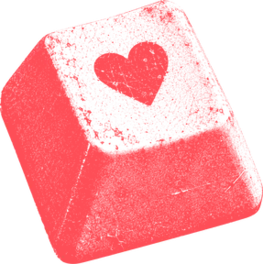
“I was hoping for the red images”
On 10 October I asked Claude for some logo hearts in the grainy style we use for our chimp pictures, the V4 style from Article 01. Codex drew each heart in black stipple on a flat yellow background. To try them in the logo, Claude turned the black ink into our coral, #FF4D57, and removed the yellow, so the heart stayed coral and didn’t clash with the yellow VIBE chip. Article 05 tells that story. I chose the retro key.
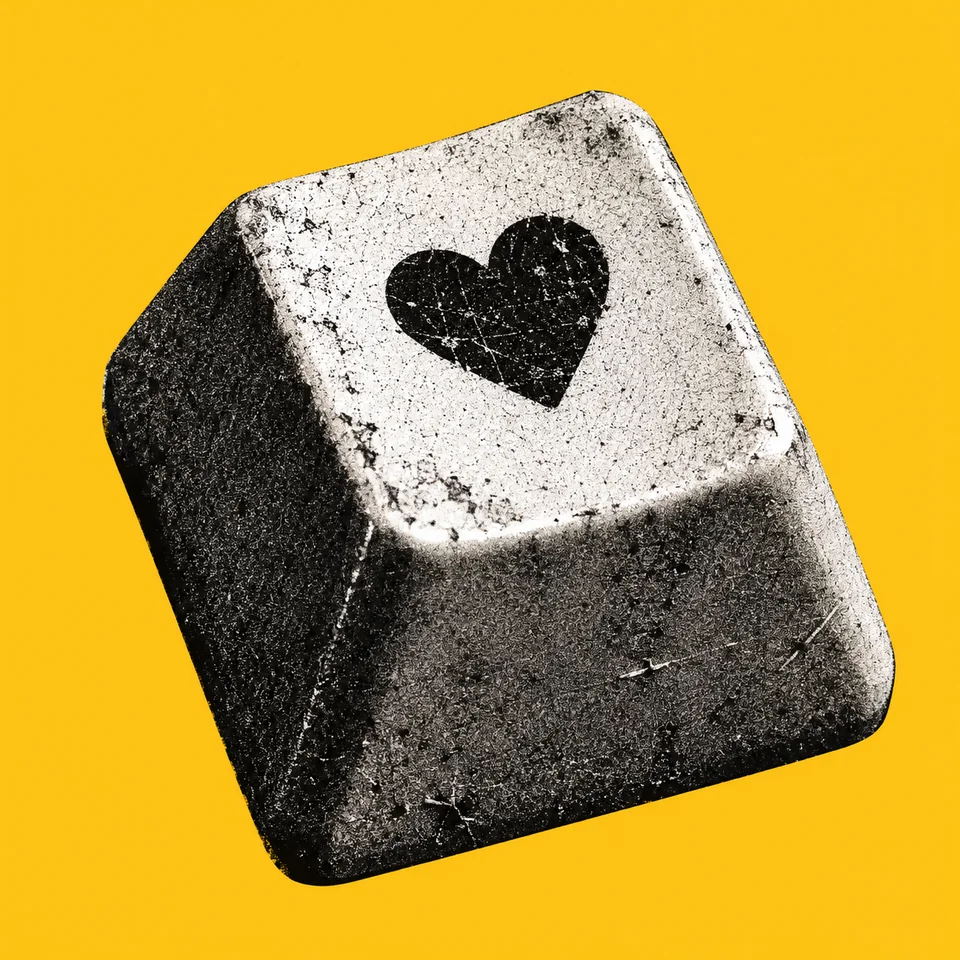 Codex render · black on yellow
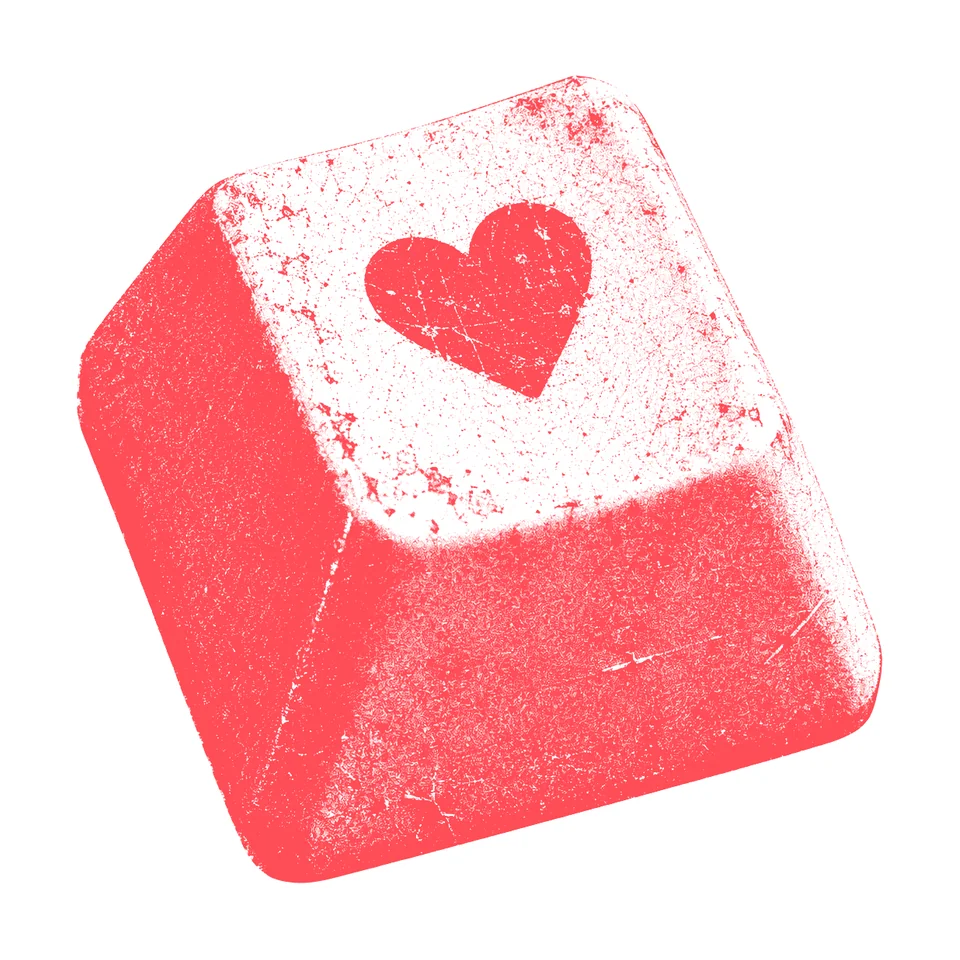 After the script · coral on white
The next evening I asked for five versions of our pricing section, with illustrations that fitted each package and no hearts. They came back in black ink on yellow tiles and banners. I asked for five more, and said:
“I was hoping for the red images.”
I meant the keycap. The second round used the same coral treatment on every object, and I loved J: poster cards, with each coral scene running off the bottom of its card. A few hours later I asked for the homepage in J’s style, and the same coral objects ended up on Tools and the 404 page too.
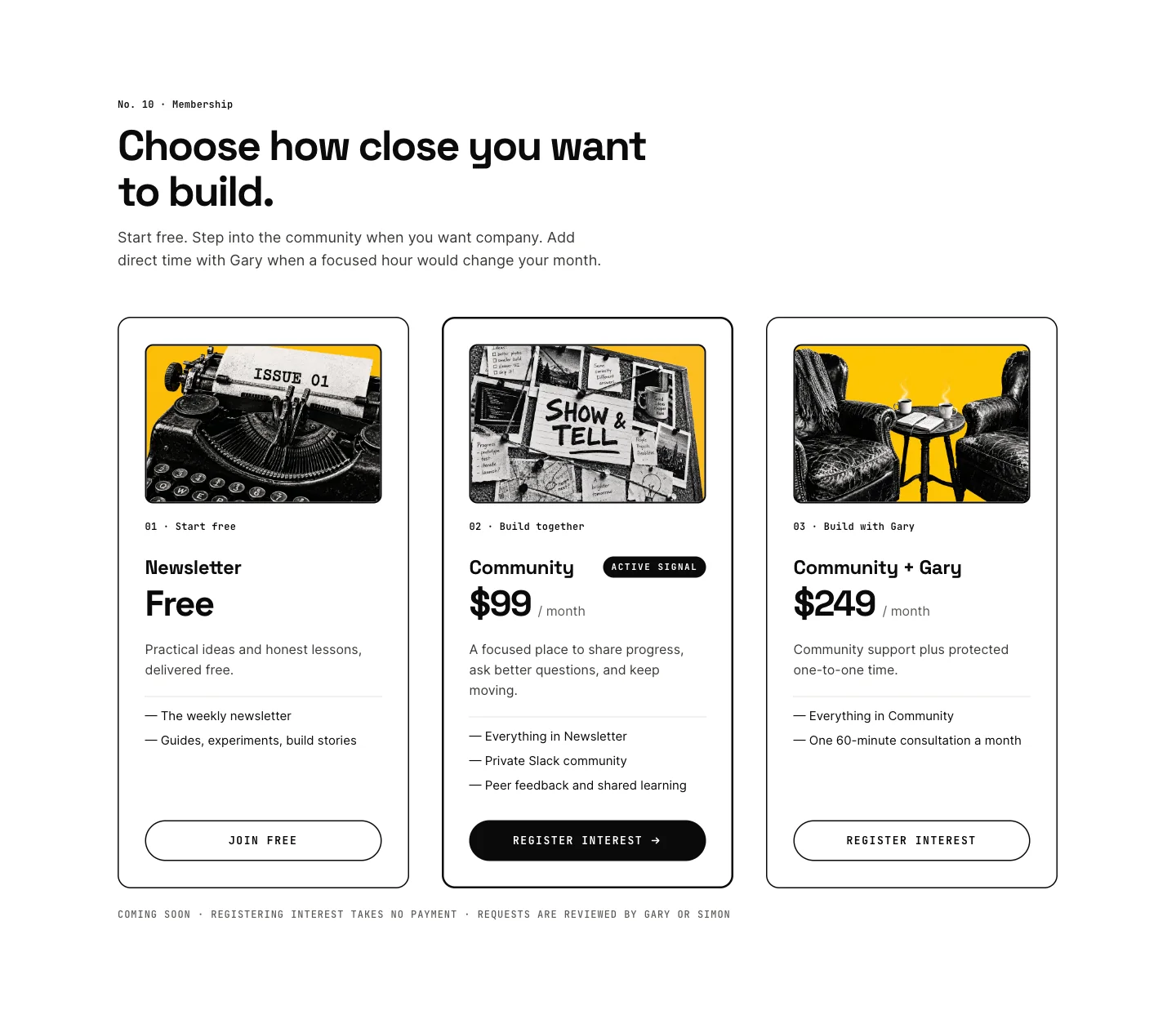 Round 1 · B, black on yellow
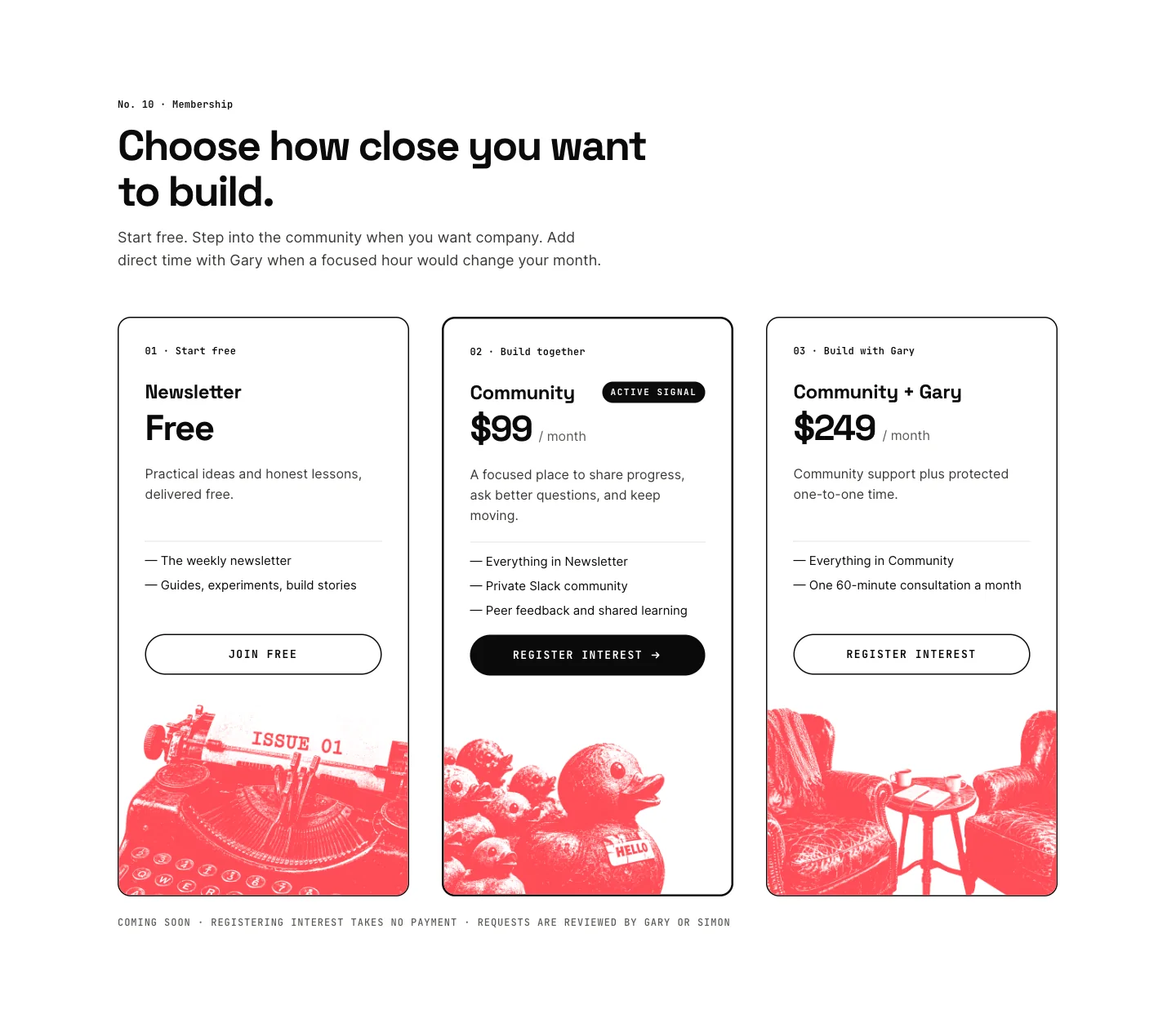 Round 2 · J, coral on white
What coral grain is
Coral grain is one ink. Every pixel in the picture is the same coral; only how see-through it is changes. Where the drawing was solid black, the coral is solid. Where it was grey grain, the coral is partly transparent, so the white page shows through and the grain survives. Where it was yellow, there’s nothing left at all.
That’s why it sits so easily on a page. There’s no background to cut around, no box and no halo. You can put it on a white card, half off the card’s edge or across two cards, and it still looks printed there.
It also follows a colour rule I gave on 11 October, about the icons:
“I don’t like the red on the yellow. For the icons I like it either when it’s the red on the white or the black on the yellow.”
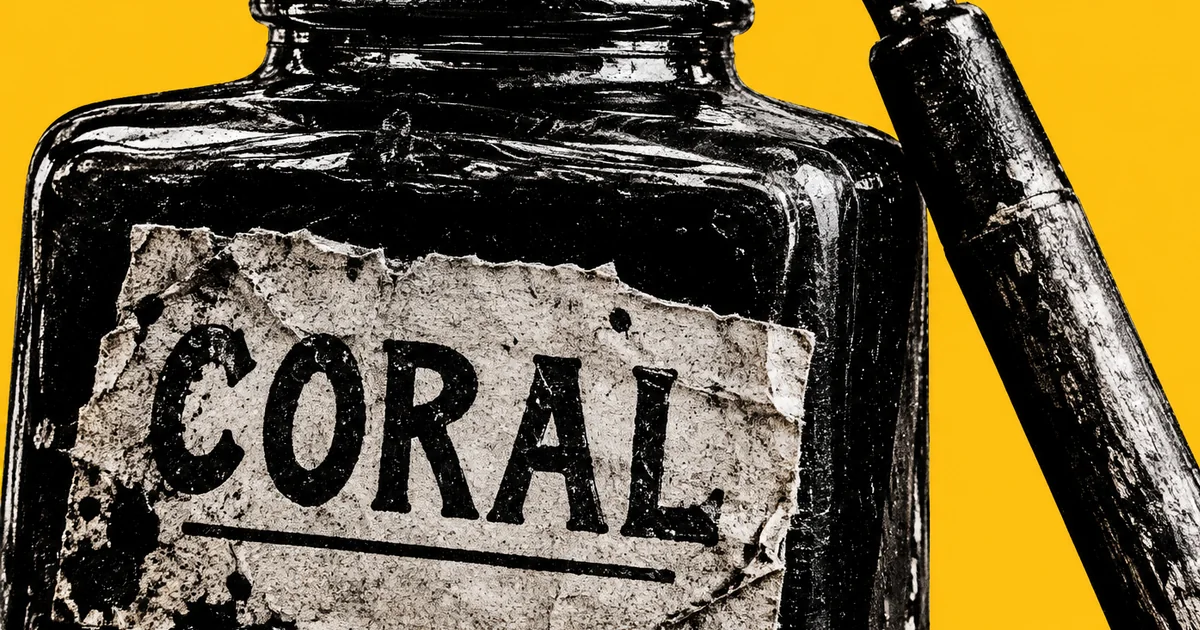
Coral grain is the red on the white. Our blog banners, like the one at the top of this page, are the black on the yellow.
Step 1: draw it in black on yellow
Every picture starts from one style prompt. It’s a paragraph about how the picture looks, followed by a single SCENE line about what’s in it, and only the SCENE line ever changes. Ours came out of the method in Article 01, which publishes a five-sentence version you can copy. A black stipple style on a flat yellow field is what makes the next step work.
For objects that will sit on white, the SCENE line needs one more phrase. Our style prompt crops tight and lets the subject run off the frame, which is right for a banner. On a white page, though, that leaves a hard cut edge in mid-air. This is the SCENE line for a kitchen timer from the pricing versions, exactly as we sent it:
SCENE: a chunky vintage wind-up kitchen timer standing upright, its dial numbered in fives up to 60 with the pointer set at 60 and the words 60 MIN printed on its face, shown whole and complete in the middle of the frame with clear flat colour all around it, nothing touching or running off any edgeAnd here’s the pattern. Replace the placeholders with your own object and word:
SCENE: a [DARK_OBJECT] with [ONE_SHORT_WORD] printed on it in bold block letters, shown whole and complete in the middle of the frame with clear flat colour all around it, nothing touching or running off any edge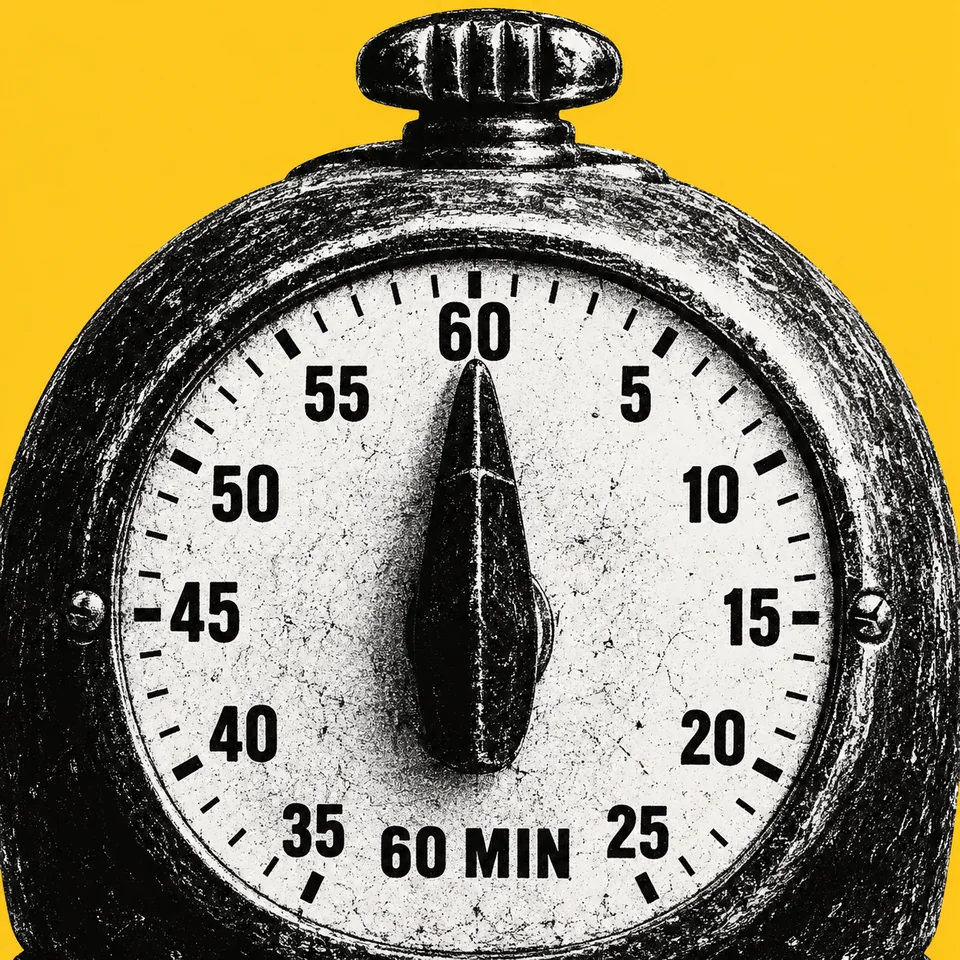 Without the whole-object phrase
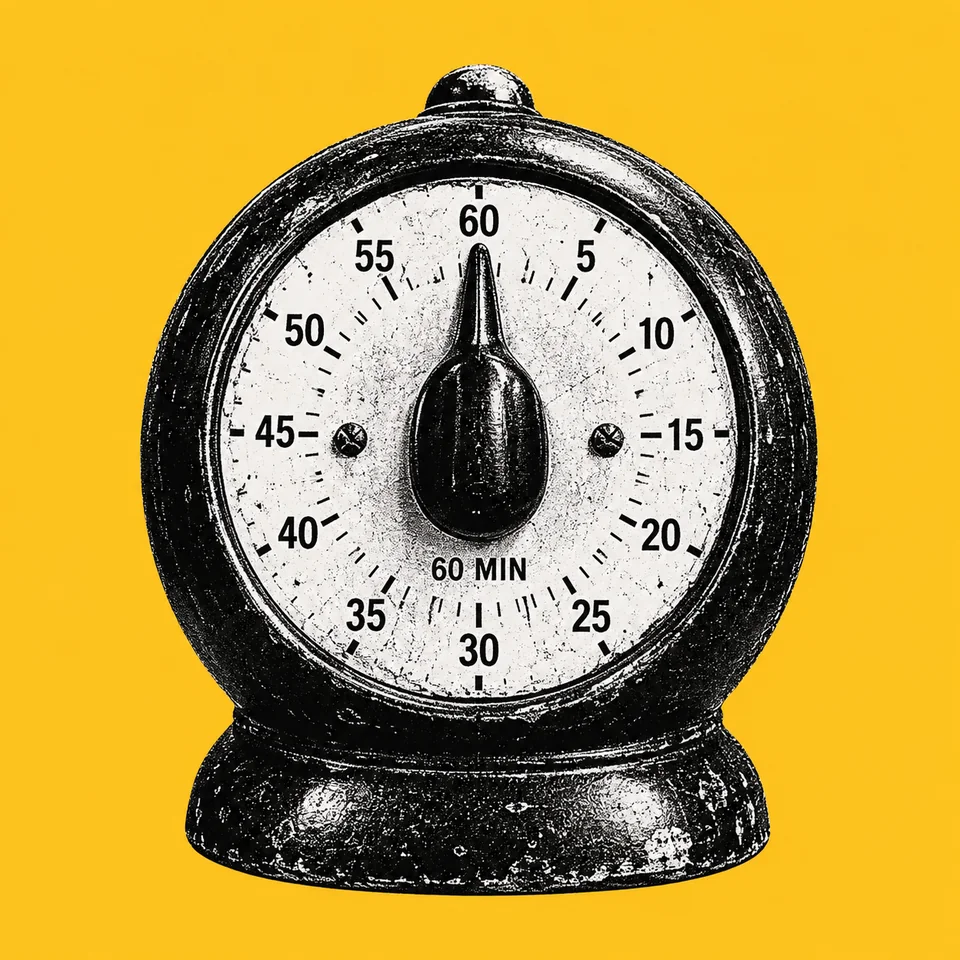 With it
We render through Codex’s built-in image generation, not Paper’s. In September, the same prompts through Paper’s generator came back with soft see-through edges: in one run, none of the 96 renders had a single fully opaque pixel. The same prompts through Codex came back fully opaque, 8 of 8. Our render script checks every result for three things: one image per request, the prompt delivered unchanged, and no transparent pixels at all.
Step 2: turn the black into coral
Claude wrote the recolour as a short Python script using the Pillow imaging library. For every pixel, it does four things:
- Find the brightest channel. Take the highest of the pixel’s red, green and blue values, from 0 to 255.
- Work out the ink. Ink is 1 − brightest ÷ 255. Black is nearly 1. Yellow and white are nearly 0.
- Turn ink into opacity. Opacity is (ink − 0.15) ÷ 0.6, kept between 0 and 1. Anything under 15% ink disappears. Anything over 75% ink is solid.
- Paint it all coral. Every pixel gets the RGB value of #FF4D57 and that opacity. Then the picture is cropped to the subject, with 24 pixels to spare.
These are real pixels from the keycap render, put through those four steps:
| Pixel | Red, green, blue | Brightest | Ink | Coral opacity |
|---|---|---|---|---|
| Yellow background | 254, 196, 20 | 254 | 0.00 | 0% |
| Pale grain on the top | 199, 190, 182 | 199 | 0.22 | 12% |
| Light grey | 170, 158, 156 | 170 | 0.33 | 31% |
| Mid grey | 128, 120, 109 | 128 | 0.50 | 58% |
| Dark grey | 90, 80, 78 | 90 | 0.65 | 83% |
| Black | 14, 12, 9 | 14 | 0.95 | 100% |
Why the brightest channel, and not brightness as we see it? Yellow is bright in red and green but has almost no blue. Measured the way our eyes weigh red, green and blue, the render’s yellow is only about 77% bright, so it would count as 23% ink and leave a 14% coral film over the whole background: a pale pink box. Its brightest channel is 254, so the script treats it as almost no ink at all. Black is dark in every channel, so it counts as ink either way.
Here’s the whole script. Run python3 coral.py render.png coral.png to crop to the subject, or add --full to keep the whole frame for scenes that run off the edge of a card, like the poster cards. To use your own brand colour, change the CORAL line.
"""V4 render -> coral grain cut-out, same ink formula as the logo's coralise.py.
usage: coral.py SRC.png OUT.png [--full]   (--full keeps the whole frame; default crops to the subject)"""
import sys
from PIL import Image, ImageChops
CORAL = (255, 77, 87)
src = Image.open(sys.argv[1]).convert("RGB")
r, g, b = src.split()
bright = ImageChops.lighter(r, ImageChops.lighter(g, b))
alpha = bright.point(lambda v: max(0, min(255, round((1 - v / 255 - .15) / .6 * 255))))
out = Image.new("RGBA", src.size, CORAL + (0,)); out.putalpha(alpha)
if "--full" not in sys.argv:
    box = alpha.point(lambda a: 255 if a > 60 else 0).getbbox(); pad = 24
    out = out.crop((max(0, box[0] - pad), max(0, box[1] - pad), min(src.width, box[2] + pad), min(src.height, box[3] + pad)))
out.save(sys.argv[2]); print(sys.argv[2], out.size)What goes wrong
The script is simple. The trouble comes from the pictures, the colours and the exports around it. These are the problems we hit between 10 and 12 October, and what fixed them.
White things turn pale pink
The script keeps only the dark parts. A white envelope is mostly light paper, so after the recolour it’s a thin coral grain over white, which reads as pale pink, and my rules say no pale pink anywhere. In the pricing work, Claude flagged the envelope and replaced it with a dark leather postbag, whose SCENE line asks for “worn dark leather”. A few hours later, under the same rule, Claude swapped a fan of paint swatches on the homepage for a box of crayons.
 The envelope
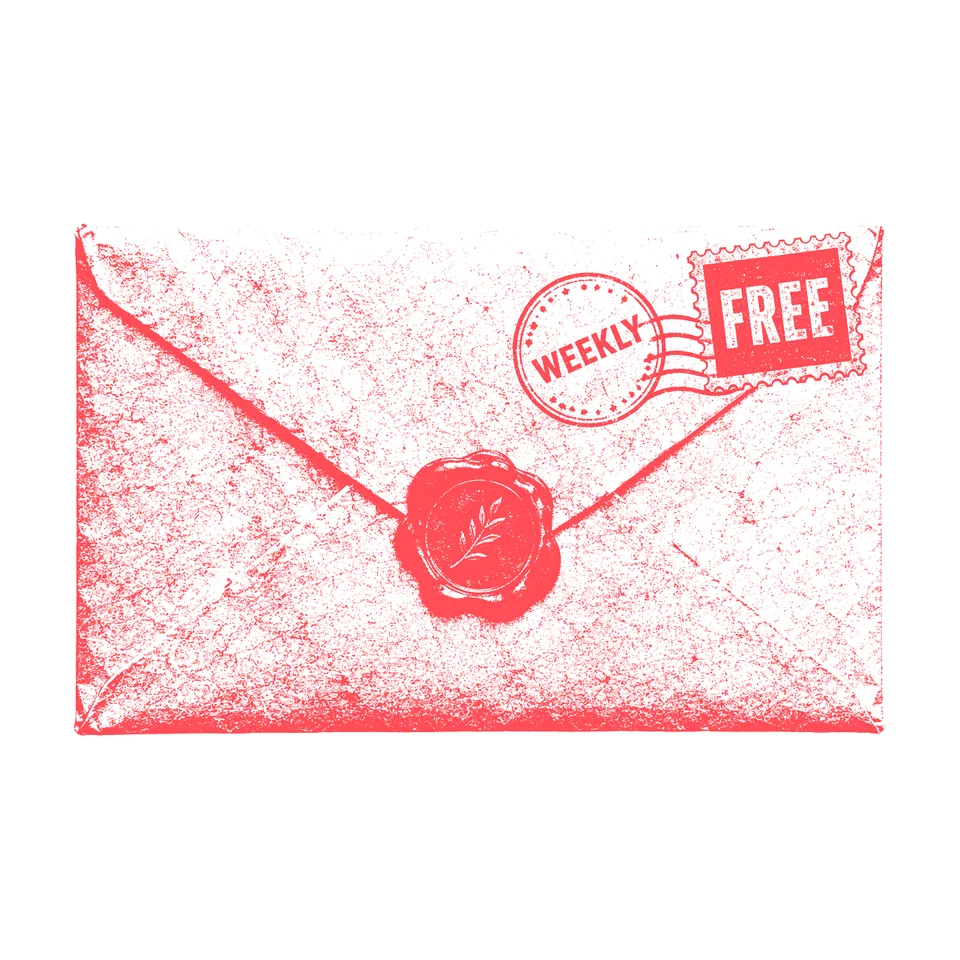 Turns pale pink
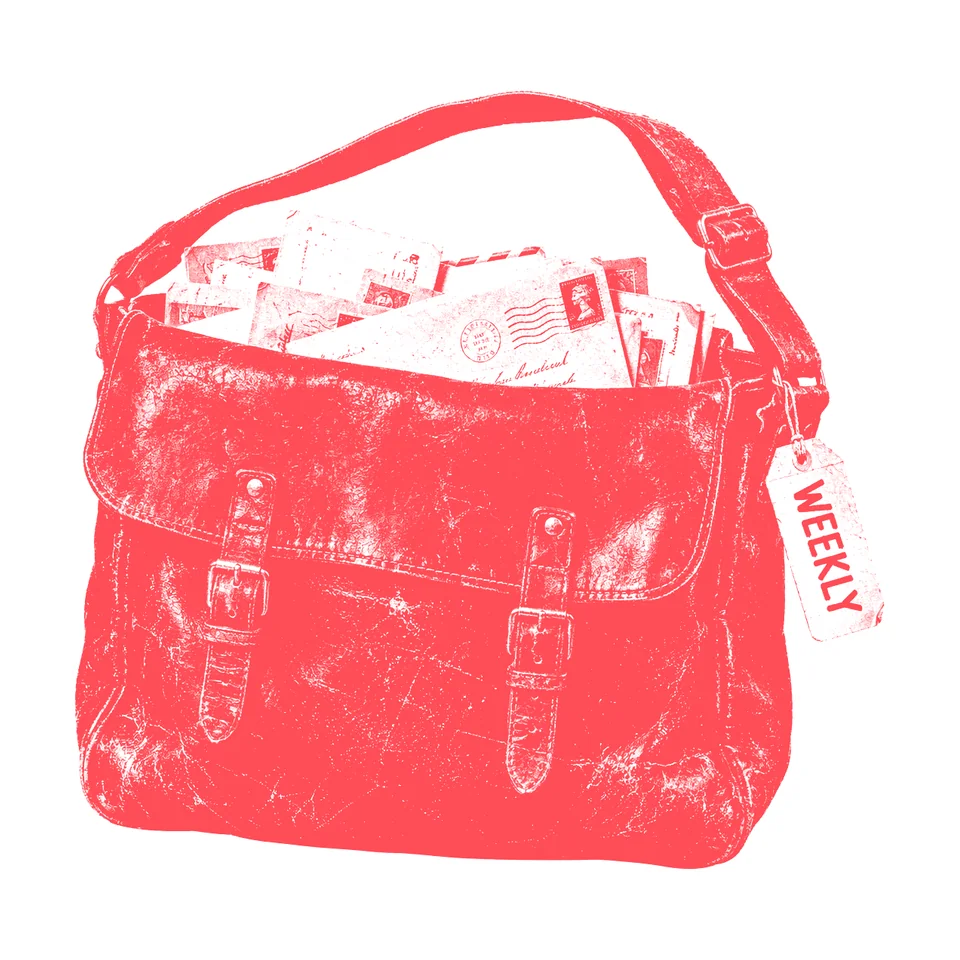 The postbag instead
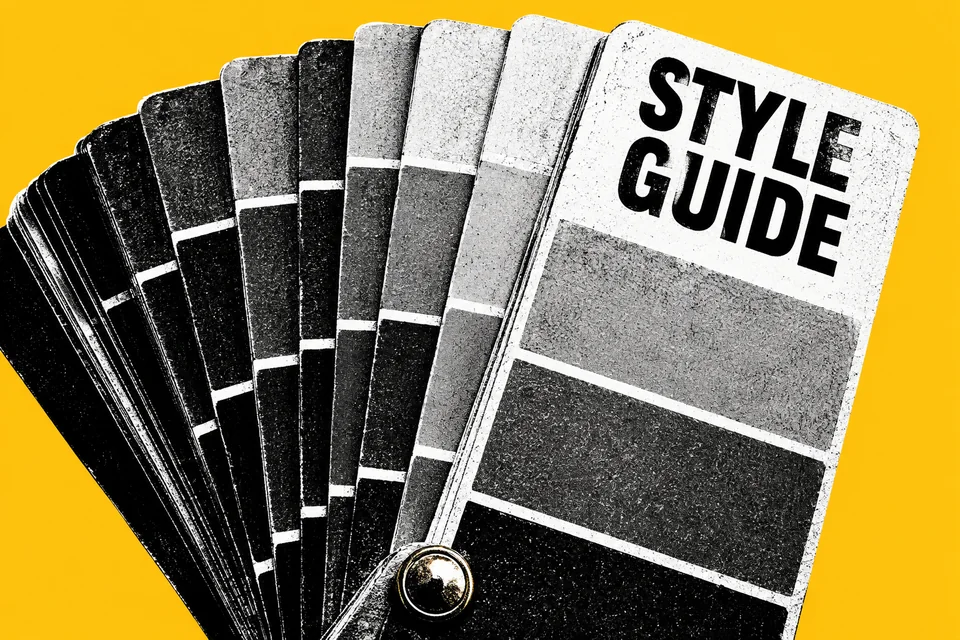 The swatch fan
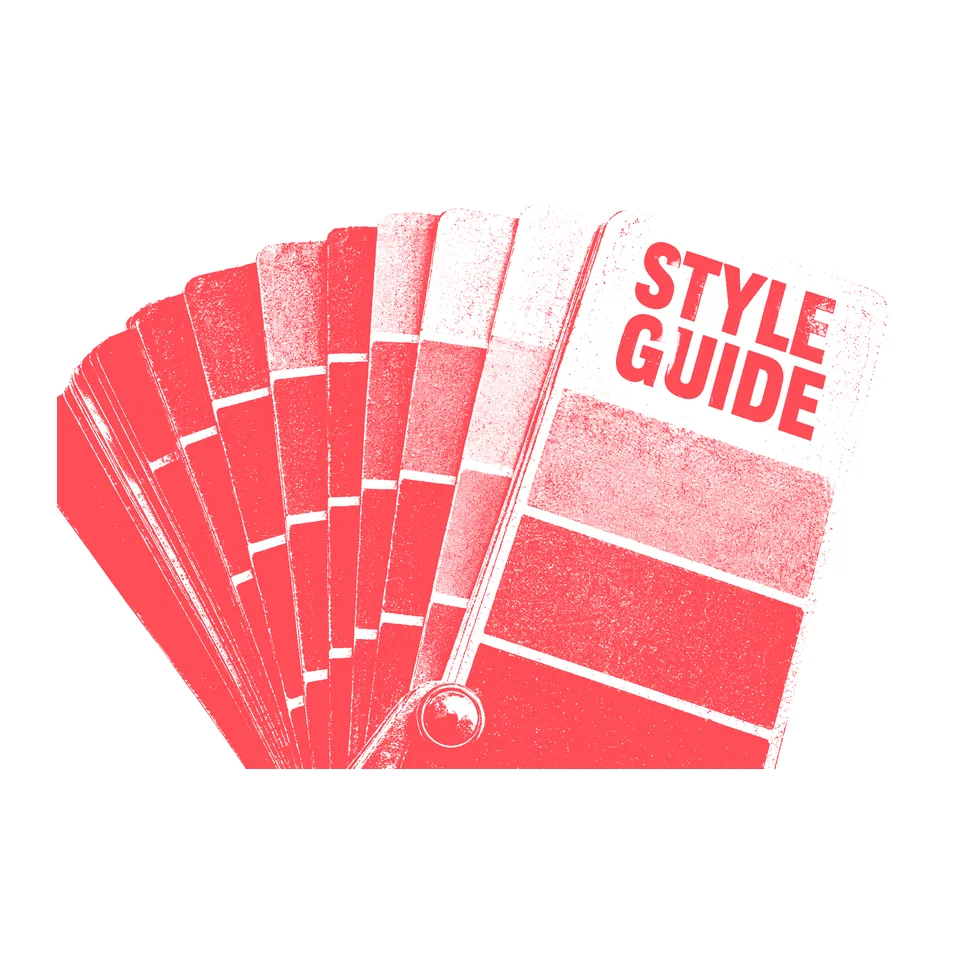 Pale swatches
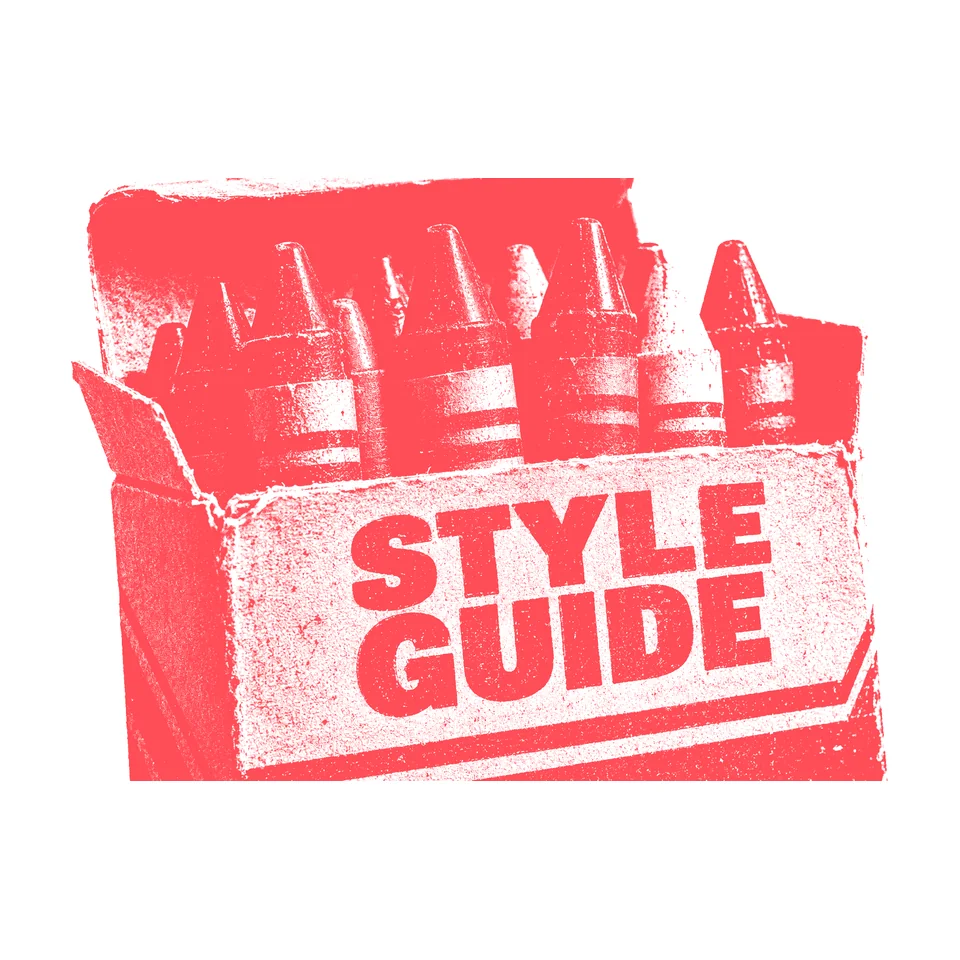 The crayon box instead
The fix: choose objects that are mostly dark, or ask for them dark in the SCENE line. A light area with dark detail works, like the keycap’s pale top and solid heart. A mostly white object doesn’t.
Doodled hearts creep in
The pricing brief said no hearts. The first pinboard came back with small doodled hearts on its notes. The rerender’s SCENE line added this: “every other card carrying only a few short words with no doodles, emoji or drawn symbols of any kind”. It came back clean.
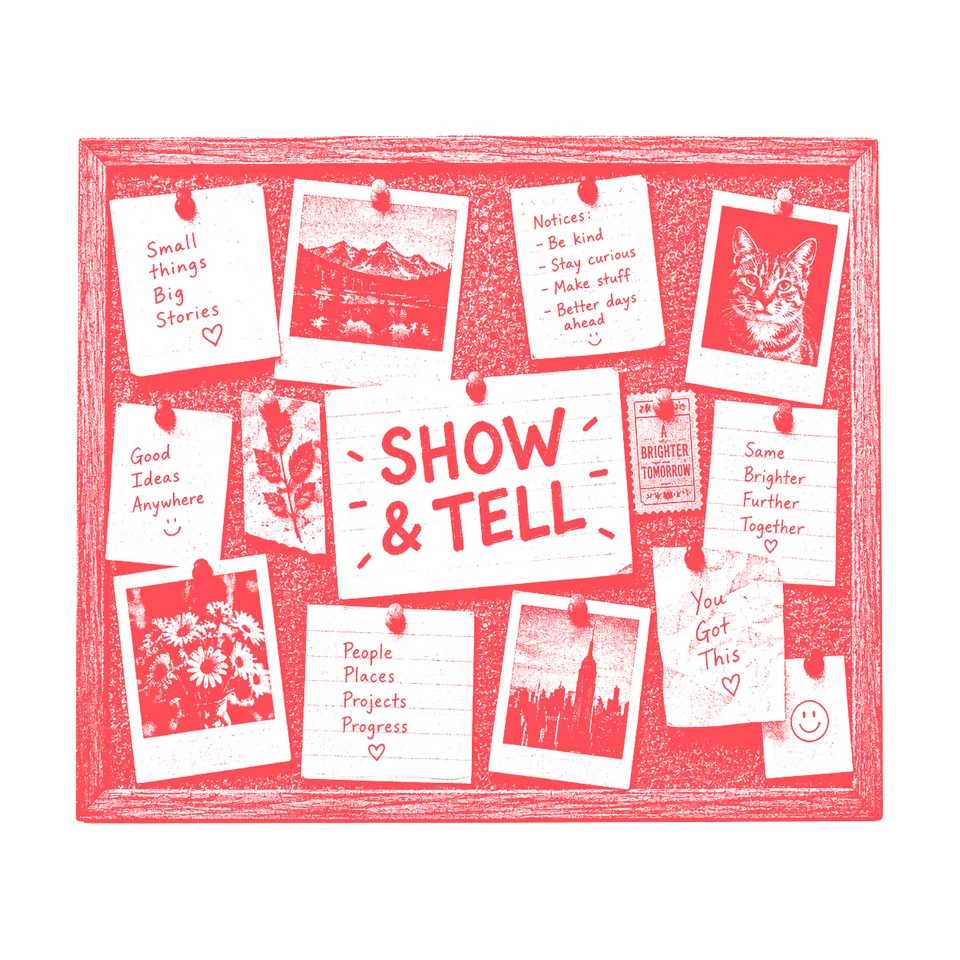 First render
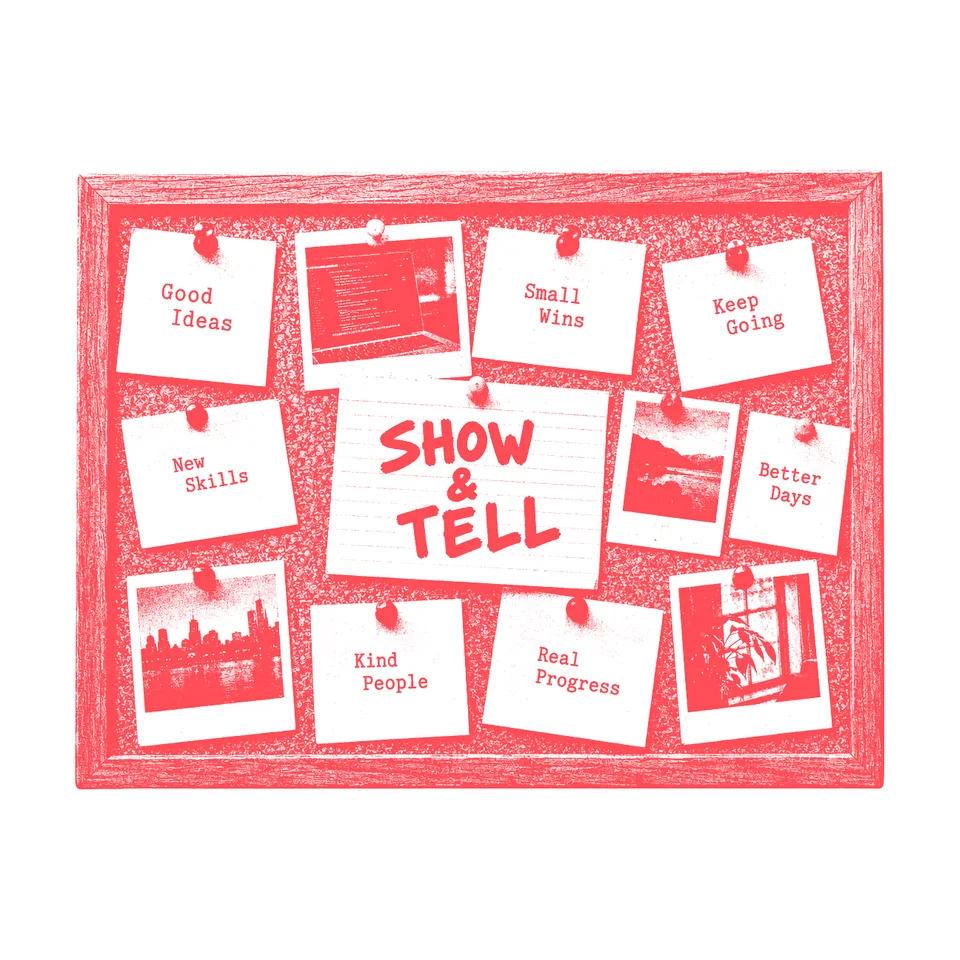 With the no-doodles phrase
A grey haze on white
This one came from the black version of the same idea. For round 1’s objects that broke out of their tiles, Claude cut out the black ink with our black-ink script, which turns dark tones into opacity much like the coral one. At its default setting it left about 11 out of 255 opacity over the whole background. That’s invisible on yellow, but on white it’s a faint grey box. Raising its --alpha-floor setting from 0.018 to 0.065 took the corners to 0. The setting is a fraction from 0 to 1, not a value out of 255: a floor of 24 wipes the whole picture.
 Default floor · 0.018
 Floor raised · 0.065
The coral script has a floor built in: the 0.15 in its formula. The coral cut-outs we checked had fully transparent backgrounds. Whatever script you use, measure the corner opacity before you upload.
Paper exports are Display P3
Paper exports PNGs tagged “Display P3 Gamut with sRGB Transfer”. Read raw, our brand yellow #F4FF3D comes out as 246, 255, 101, so colour checks miss and anything built straight from the pixels drifts. Convert to sRGB with the file’s own colour profile first. ImageMagick’s -colorspace sRGB doesn’t do it; -profile with an sRGB profile does. Our site’s image export converts every Paper image this way, and so did the build for this article: both pricing boards above came out of Paper tagged P3.
White ink turns the picture into a negative
On the pricing page, the Community card is solid red with black ink ducks, and I asked to see them in white instead. Because the ink was recoloured rather than redrawn, the darkest parts of the drawing, such as the shadows and the eyes, became the brightest. Claude pointed out it looks a bit like a photo negative. Those are the ducks on the pricing page now. If you want light ink on a dark card, you’d need the highlights as the ink instead, which this script doesn’t do.
Where it ended up
The v2 design went live on 13 October. These are the main places coral grain ended up:
- Pricing. A typewriter typing ISSUE 01, the white rubber ducks, and Gary and me in two armchairs, plus a mailbox, a key on a MEMBERS tag, a tin-can phone and a desk lamp.
- The homepage. The four topic cards carry the crayon box, a box camera, a card-catalogue drawer and a megaphone.
- Tools. An instant camera, a retro computer, a ticket dispenser, a photo slide, a typewriter and the crayon box.
- The 404 page. The card-catalogue drawer, labelled FOUND, and Gary and me in the armchairs.
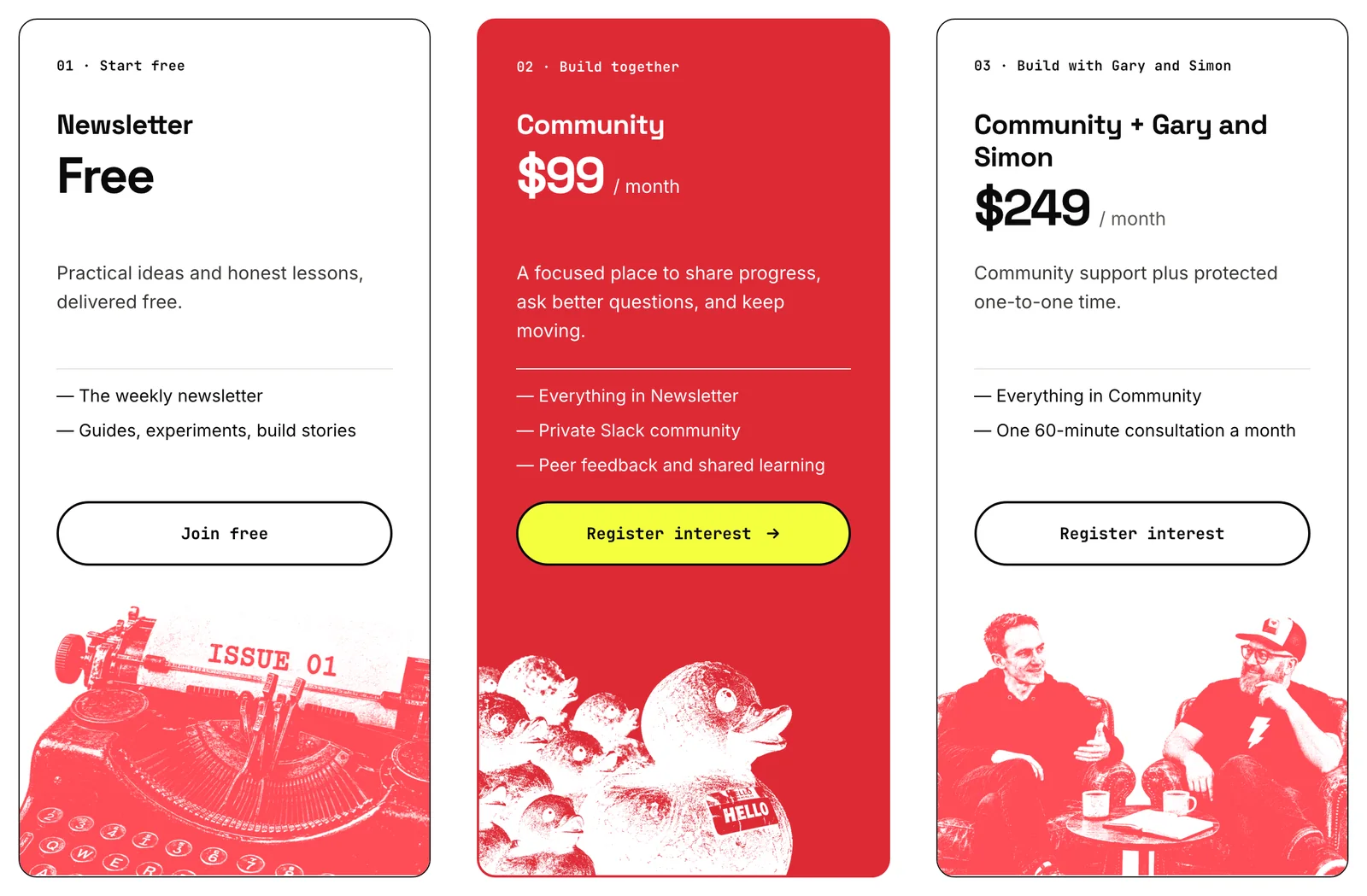 Pricing
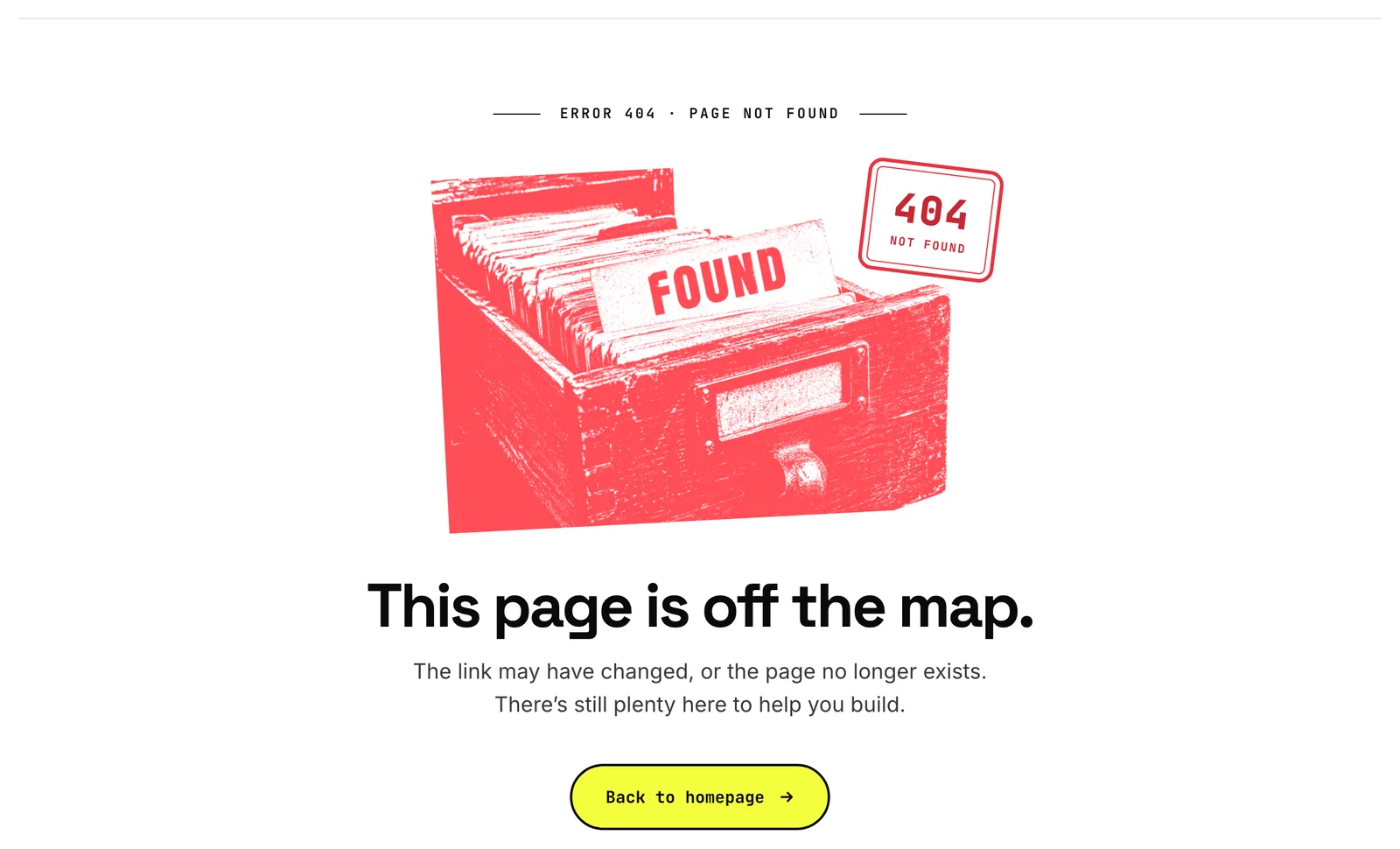 404
404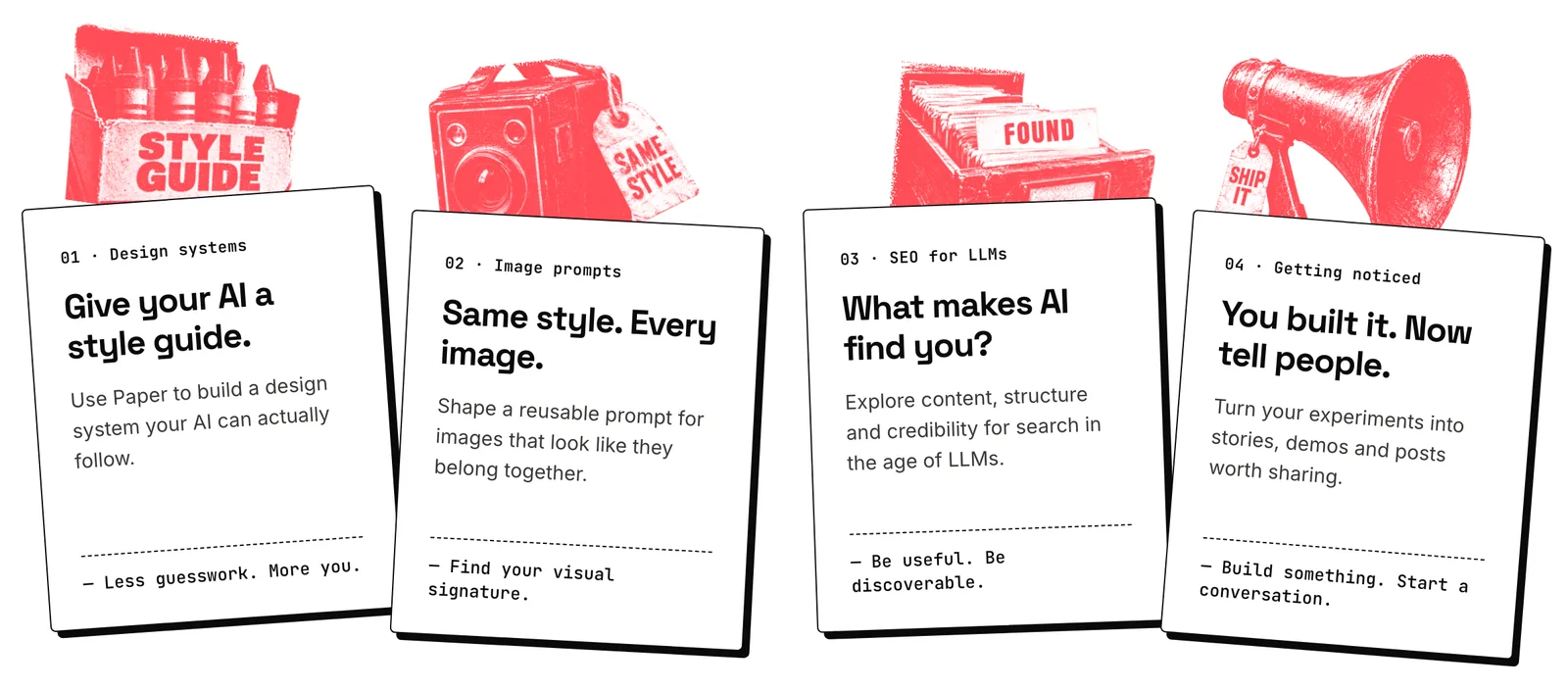 Homepage topics
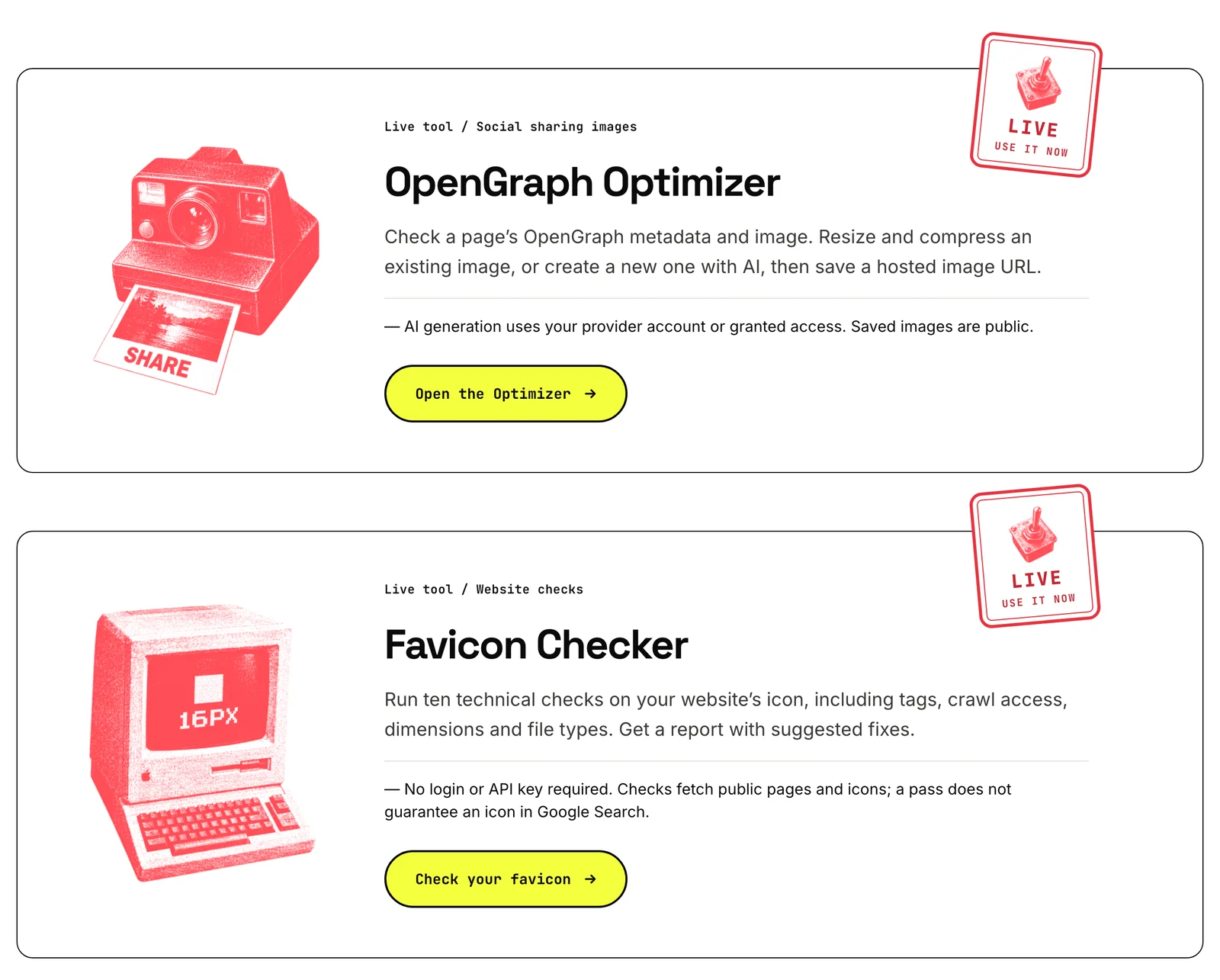 Tools
ToolsThe drawer is on No SaaS Is Safe too, and the armchairs on the membership pages. The blog is the exception. When I saw the homepage in this style, I asked for its blog cards to use the real yellow article banners rather than coral versions, so each article keeps its yellow picture.
What it costs and what it can’t do
- Every picture is a paid render. Codex’s image generation runs on a ChatGPT plan’s allowance, and every rejected subject is another render. The logo hearts took 73 and the pricing work 29. We didn’t track a cost per picture.
- We can’t confirm the model. We ask for GPT Image 2.5, but Codex gives no way to pick or confirm the image model. One render’s reply said so: it “can’t confirm GPT Image 2.5”. The files’ content credentials say only “gpt-image”.
- The model chooses the words in the end. One of Claude’s banner options for this article was a printing press with a sheet reading ONE INK. The prompt arrived unchanged, and the press printed MAKE GOOD THINGS. Check the spelling and wording on every render.
- Checks can raise false alarms. Our render script flagged nine homepage renders because the prompt had changed. The only change was one extra line break at the end.
- It’s a filter, not a cut-out. The script can’t tell the subject from the background. Anything light inside the object turns see-through too, which is the pale pink problem above.
- Not tested: other brand colours. We’ve shipped coral on white and white on red, nothing else.
Try it on your own pictures
- Draw in black on one flat colour. Use a stipple style prompt with a single flat background, like the one in Article 01. Pick dark subjects.
- Ask for whole objects. End the SCENE line with “shown whole and complete in the middle of the frame with clear flat colour all around it, nothing touching or running off any edge”.
- Check the render at full size. It must be fully opaque, with a flat background and the right words, and nothing you didn’t ask for, such as stray hearts.
- Run the script. Set your colour in the
CORALline, then runpython3 coral.py render.png out.png. - Check it on white. Look for pale tints, a haze in the corners and cut edges. If a Paper export is involved, convert it to sRGB first.
Or hand it to a coding agent. Replace the placeholders, attach the script above, and paste this:
Please render [MY_OBJECTS] with my style prompt [MY_STYLE_PROMPT], changing only the SCENE line. End each SCENE line with: shown whole and complete in the middle of the frame with clear flat colour all around it, nothing touching or running off any edge.

Check each render is fully opaque, has a flat background and spells its words correctly. Then run the attached coral.py on each one with the CORAL line set to my brand colour [MY_BRAND_HEX].

Show me each result on white at full size. Flag anything that turns into a pale tint, has a haze in the corners, or contains something I didn’t ask for. Don’t replace a subject without telling me why.
Here’s this article’s banner, run through the same script with --full:
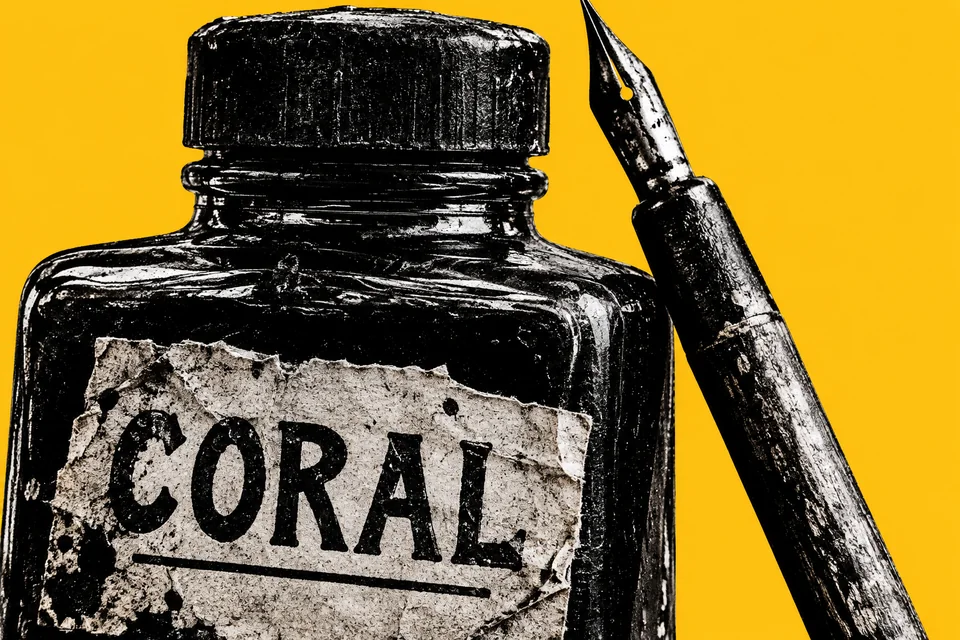 The banner render
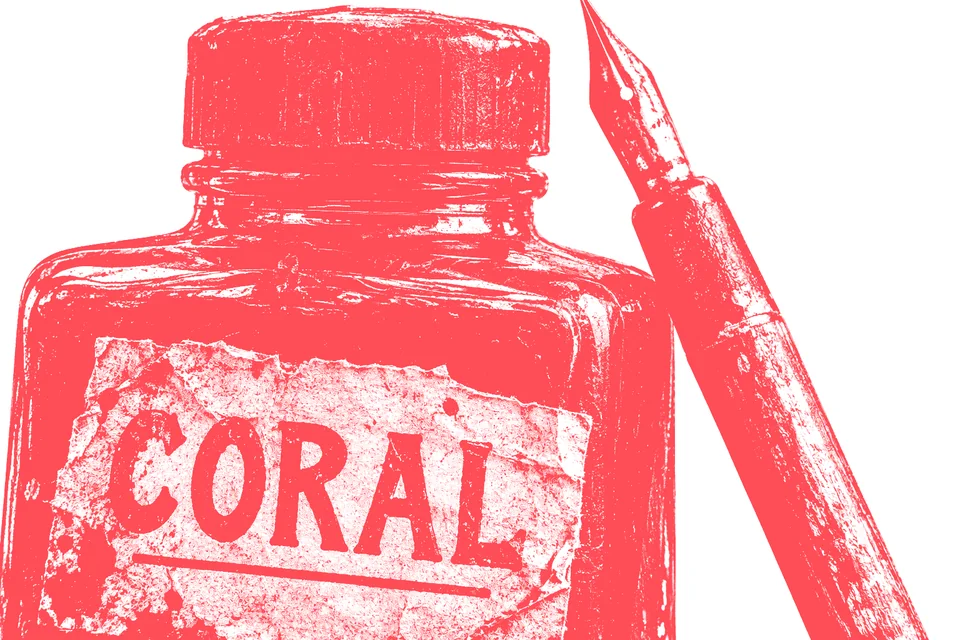 Through coral.py
Get the next experiment in your inbox.


